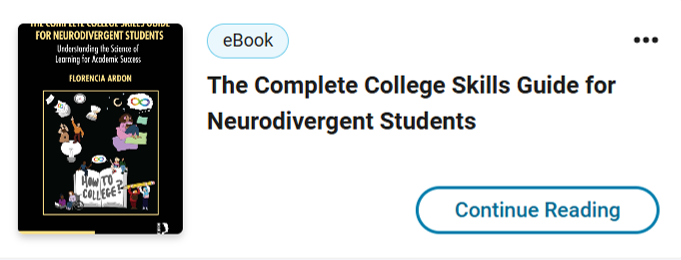
Today, I was able to read my published book for the first time, as an ebook. The hardback and papercopy versions will be available on August 20, but the ebook can be read right now. (You can order an ebook on Routledge and use the 20% discount code 26AFLY2). This page has more information about the book and where to buy it or order an inspection copy.
Personally, I *need* to read in print when it’s for pleasure. I like the feeling of the book in my hands, the smell, weight, all those sensations add to the experience. Many people love reading fiction on a device, which is normally lighter than a physical book. It used to be considered unhealthy because of the light they emit but technology has advanced to the point of mimicking natural light.
When we are reading textbooks, or any non-fiction book we want to obtain knowledge or learn from, many people prefer the “real thing” be it a papercopy or hardback. There are many advantages related to reading from a physical source: our brain will be paying attention to multiple aspects at once, which can then become cues for our memory. That includes the color of the page, the design, how big the book is, where exactly on the page and in the book a passage is, and much more. We can also add little sticky “flags” or sticky notes as bookmarks, stick a paper with our notes inside the book. We can also annotate it on the margin, highlight, underline… there are multiple ways in which we physically connect to a book that can truly enhance our learning. We’re embodied brains, after all.
When I’m reading research studies or textbooks, I do prefer PDFs (for scientific articles) or ebooks. Obviously we miss most of the sensations and cues from a physical copy, including the location of a paragraph on a page, whether that was on the right or left side, in the middle of the book or toward the end, etc. But, it’s so much easier to find specific information!! The search function and hyperlinks save us much time, which is really needed for very busy people, including students.
In addition to saving time, for neurodivergent people and anyone with sensory differences an ebook can make it *possible* to read the book. For instance, someone with a very sensitive nose doesn’t have to worry about the smell of paper or ink. Other people may feel a book’s paper is too rough or too smooth and that may be very unpleasant for them. People, especially dyslexic people but many others may find it easier to read a certain font type or size, having a larger margin or more space in between lines of text. And, you can have the book read aloud to you!
Taking notes is still possible (and they can be erased, which cannot really be done on paper), as is highlighting, and bookmarking. You can also create flashcards, though I would recommend to make sure to use words you normally use, unless you need to remember a phrase verbatim.
Using my book as example, I invite you to join me for a tour of some of the tools available in an ebook. Routledge uses VitalSource, meaning you are not getting a PDF, you read it in their environment (you can read offline, meaning you don’t have to be connected to the internet all the time).
First, we can see how moving from an area of the book to another is very easy. You can have the table of contents visible and can move around by simply clicking on the titles.

In this example, the page I’m currently reading is marked in bold, and the page I am planning to go to is marked in blue (I hovered the cursor over it). We can also see that all citations are marked as hyperlinks and clicking on them will take you to the actual reference at the end of the chapter.
You can also choose the font type and size, the color of the page, the width of the margin and the line height. When you click on the AA symbol on the upper right corner, a dialogue box opens and gives you options. Below I’m showing what “old style” font in small size font, with white paper, minimum margin and short line height looks like, in comparison to “Atkinson Hyperlegible” at a larger font size, with pages in cyan, medium margin and medium line height.

Another option on the same dialogue box, the “highlighters” lets you choose between green and yellow. The “Sharing” refers to sharing your public highlighters.
Clicking on an icon of a page with a start in front of it opens up the “Workbook.” First, the annotations menu lets me select a phrase and add notes, highlight, copy, search for a definition on Wikipedia, create Flashcards or having the device read aloud starting at that point.

I selected the phrase twice to highlight it and add a note:

Then I created a flashcard. I selected the text again, the pop-up menu appeared and I clicked on “create flashcard,” and the Flashcards menu opened up. I was prompted me to create a deck, which I called Memory, as seen below.

After I clicked save, I was given text boxes to add to the front and back of my flashcard. The back was already populated with the text I had selected before, “it is divided into episodic and semantic.” I then selected “Explicit or declarative memory”, copied it, and pasted it on the box for the front.

My flashcard is now ready! I can see it on the side of the page which is not a good idea when you’re studying because you have the source text right there. But if you click on “Study” you are sent to a different webpage that shows only your flashcard.
It shows me the front, and if I click it will turn to the back. There are several tools here, including restart the deck, randomize/shuffle, grading myself (I don’t know it / I know it).

Now, going back to the book, there are two more sections in the “Workbook” dialogue; Bookmarks and Flashcards. The bookmark option is for the whole page, not sections so you need to combine it with highlights or notes. We went to the flashcards through the annotations menu, but they can also be accessed directly on the flashcard menu.
Another useful took are shortcuts, which can be seen by clicking on the three dots at the upper right side of the page.

Finally, as expected, there is a search tool that opens by clicking on the magnifier glass icon on the upper right corner of the webpage. To keep with the topic, I show a search for memory which shows several results; I can go to those pages directly by clicking on any of them.

It’s worth spending an hour or two to review the tools that are available on an ebook, and start using them. Hopefully this post sparked your interest and curiosity to test out what all you can do with an ebook, if you are not very familiar with those tools. (For full disclosure, I was most definitely not until very recently!)